

The offline download application allows you to download BT torrent files and files via HTTP, FTP, SFTP, and BitTorrent Magnet URLs. With the offline download feature on ORICO, download tasks can run 24/7, making it ideal for scenarios where file download speeds are low.
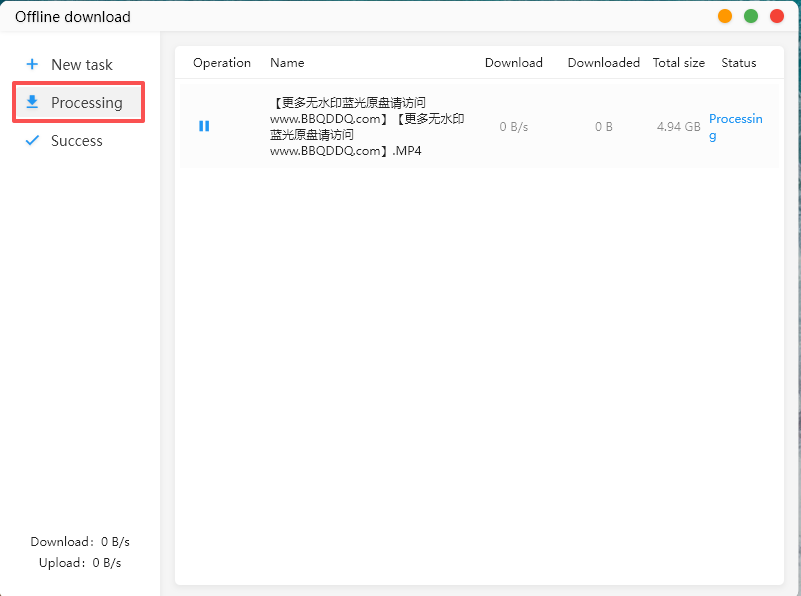
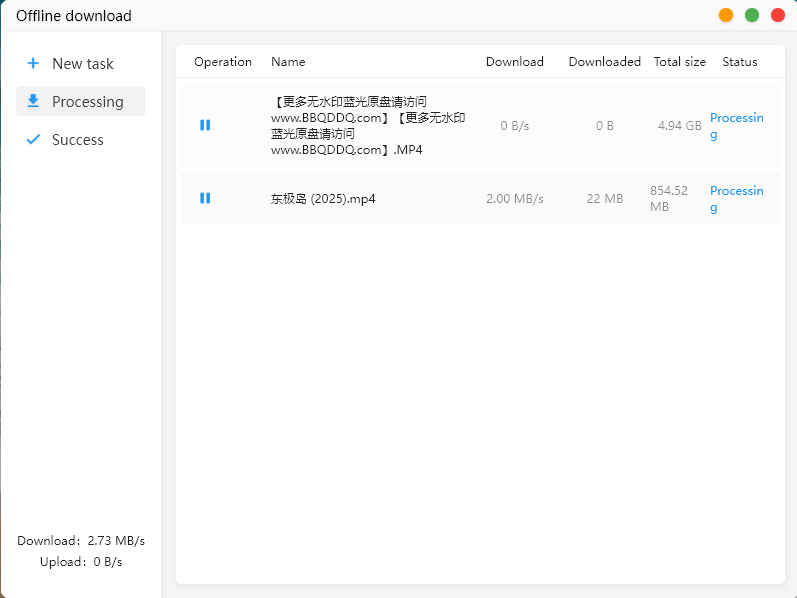
Friendly Reminder: The download speed is affected by the quality of the resource itself. For example, some resources may have slower transfer speeds due to low forwarding activity. Additionally, if the source website provides poor-quality resources, the download efficiency may also be impacted, as shown in the figure below.
For example, when comparing resource downloads via links, different resource links will yield different download speeds.
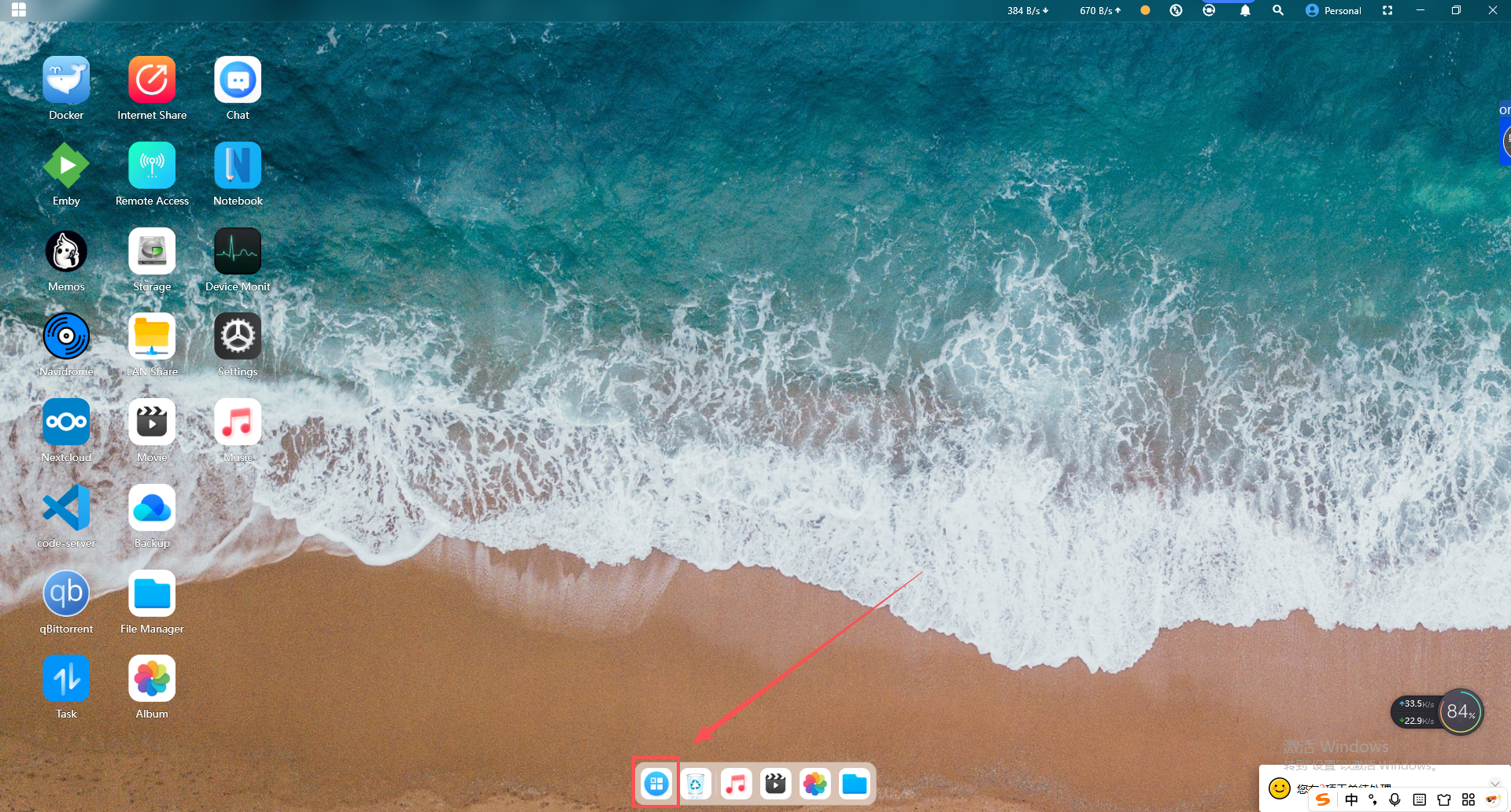
Log in to the Cyber Cloud Space.
Click the "All Apps" icon on the home page to enter the application selection interface, then click to open "Offline Download".
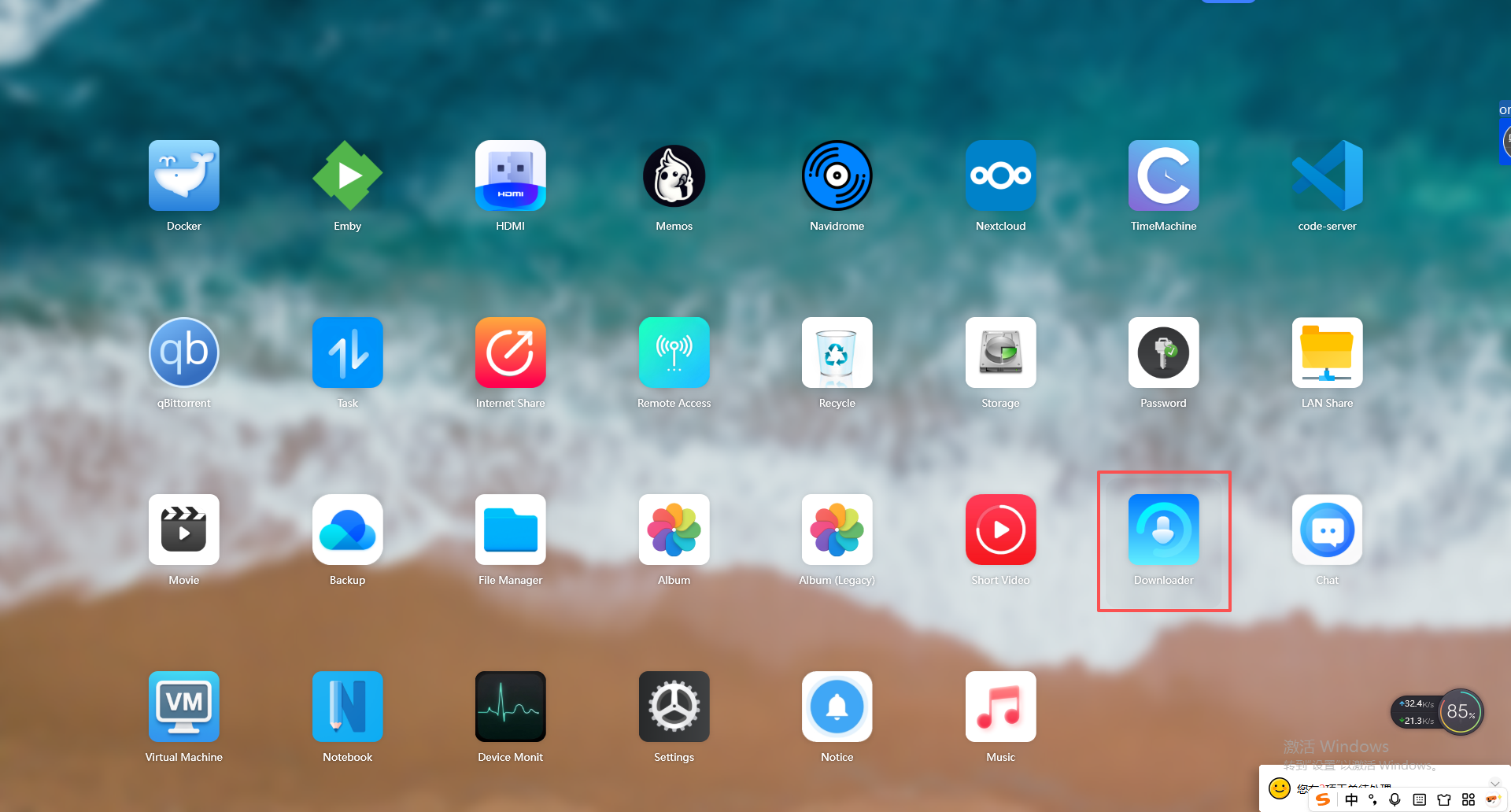
There are two ways to download: via link download and via torrent file.
(1) Link Download
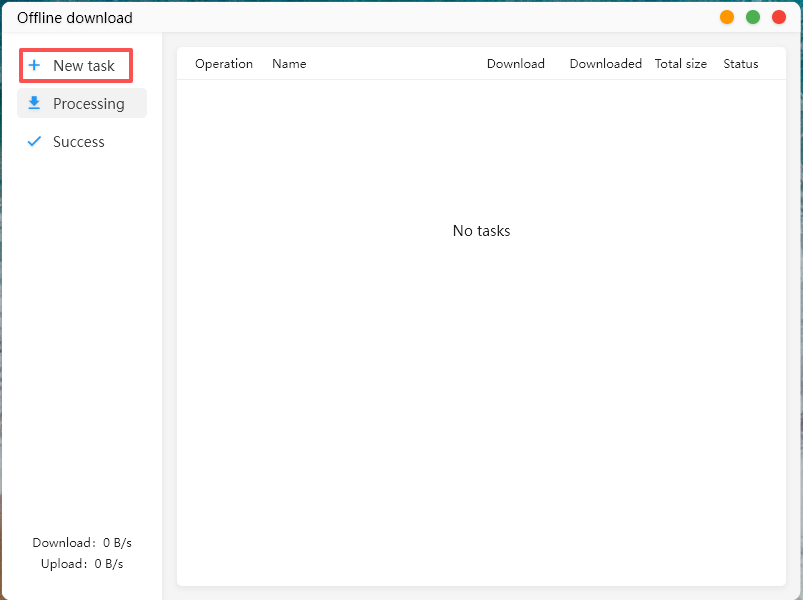
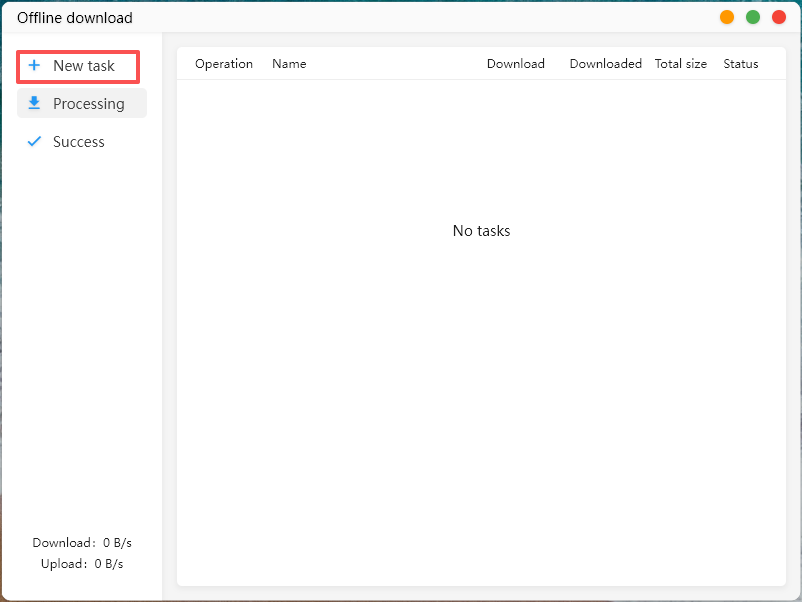
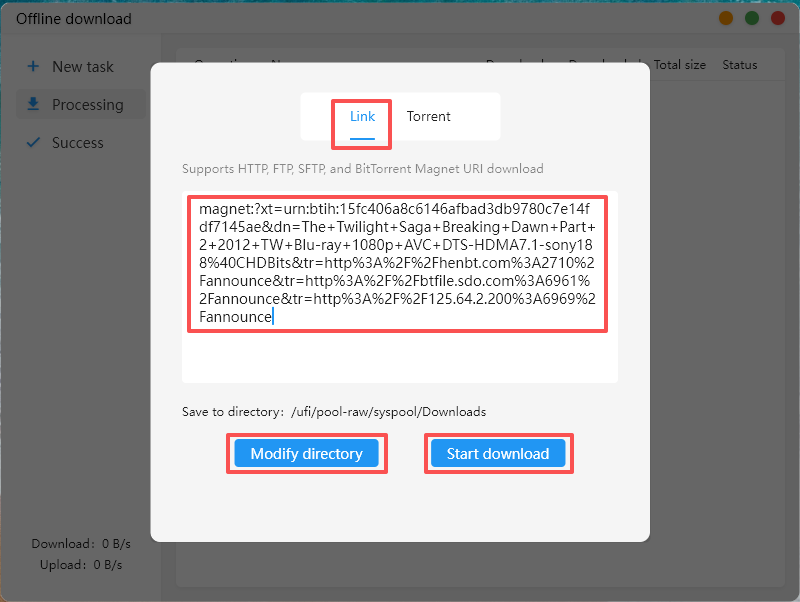
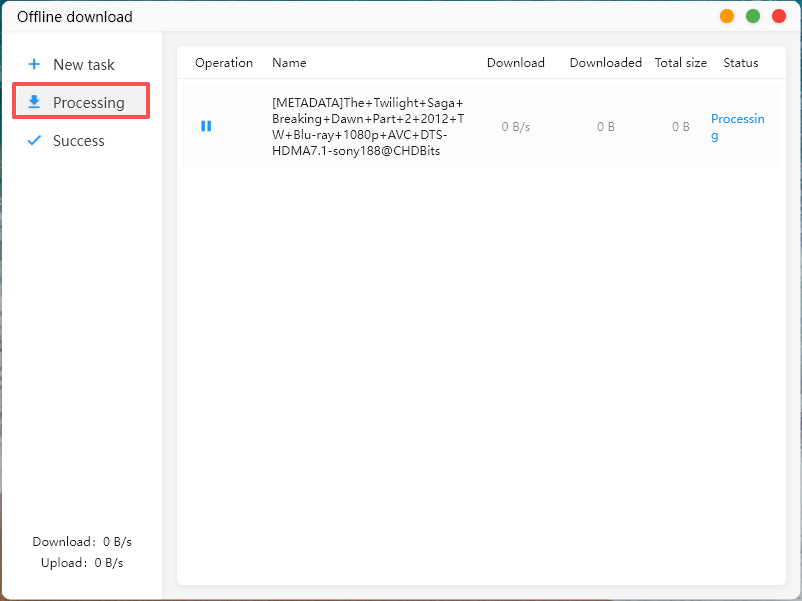
After clicking "New Task", the link download interface is displayed by default. Paste the download link and click "Start Download" to begin. You can also modify the file save directory path on this page. Tasks that are downloading will be shown under "In Progress".
(2) Torrent File Download
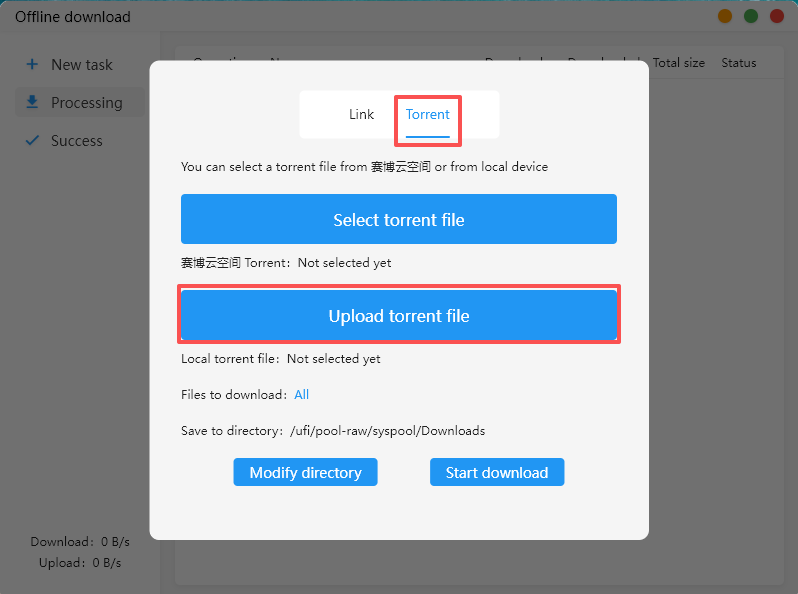
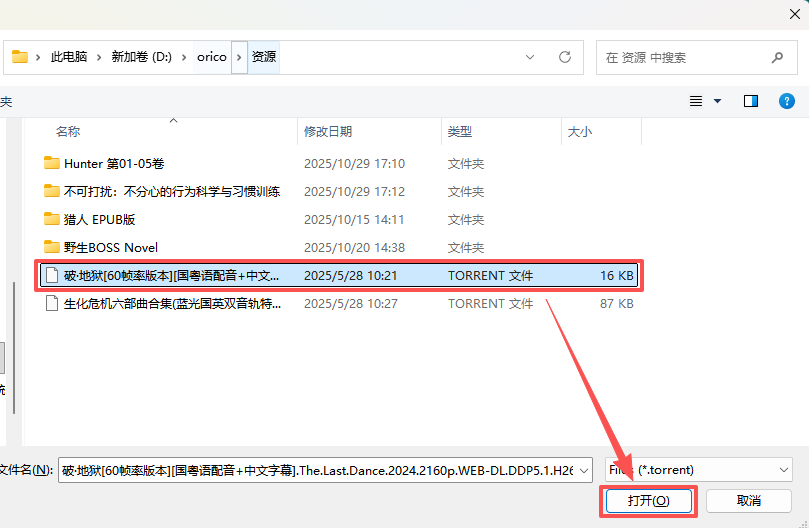
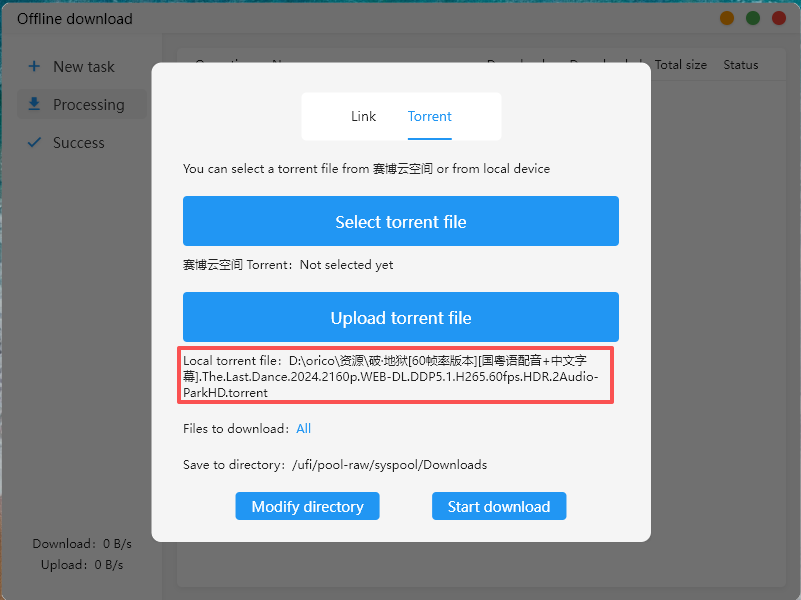
After clicking "New Task", select the torrent file interface. There are two ways to download: one is to select a torrent file from the Cyber Cloud Space; the other is to select a torrent file from your local device. Here, we use the latter as an example. After selecting the torrent file from your local device, click "Upload Torrent File" to upload it, then click "Start Download" to begin. You can also modify the file save directory path on this page. Tasks that are downloading will be shown under "In Progress".